
How to Connect to DSCC Student Wi-Fi
| Before you begin: Each student receives a unique Wi-Fi passphrase linked to the student’s DSCC account. The same passphrase may be used on all of your personal devices. Save the passphrase securely and do not share it with others. |
Follow the steps below to obtain your personal passphrase and connect to the dscc-student wireless network.
Step 1: Open the registration portal
Scan the QR code below with your device’s camera. You may also use the direct registration link shown beneath the QR code.
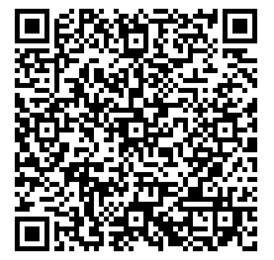
Direct link: Open the DSCC Student Wi-Fi registration portal
Step 2: Choose the DSCC student sign-in option
On the registration page, select Sign in with DSCC Student MPSK.
Step 3: Sign in with your DSCC student account
Enter your DSCC student email address, such as example@my.dscc.edu, and select Next. Complete the sign-in process if prompted.
Step 4: Copy and save your personal Wi-Fi passphrase
The portal will display your unique Pre-Shared Key (PSK). Copy or securely save this passphrase. You will use the same passphrase to connect each of your personal devices to dscc-student. Do not share it with other students.
Step 5: Open your device’s Wi-Fi settings
Open the wireless or Wi-Fi settings on your device and select dscc-student from the list of available networks.
Step 6: Enter your passphrase
When prompted for the network password or security key, enter the personal passphrase you saved in Step 4.
Step 7: Confirm the connection
After your device connects successfully, you may begin using the DSCC student wireless network.
|
Need assistance? If you have difficulty obtaining your personal passphrase or connecting a device to dscc-student, contact the DSCC Help Desk:
When requesting assistance, describe the device you are using and the step where the problem occurred. Do not send your personal Wi-Fi passphrase by email. |
Frequently Asked Questions
Why is DSCC changing the student Wi-Fi connection process?
The new process gives each student a unique Wi-Fi passphrase linked to the student’s DSCC account instead of relying on a single shared wireless password.
Can I use the same passphrase on more than one device?
Yes. Use the personal passphrase generated for you to connect each of your personal devices to dscc-student.
What should I do if the QR code will not scan?
Use the clickable registration link in Step 1 instead. If the link is opened on the device you want to register, complete the sign-in process on that device.
Which account should I use to sign in?
Use your DSCC student email address ending in @my.dscc.edu. If a different Microsoft account appears, sign out of that account or use a private browsing window, then try again with your DSCC student account.
What if my device continues trying to use the old Wi-Fi password?
Open the device’s Wi-Fi settings, forget or remove the saved dscc-student network, and then reconnect using your personal passphrase.
What if I lose or forget my personal passphrase?
Return to the registration portal in Step 1 and sign in with your DSCC student account to view the passphrase associated with your account. If you still cannot retrieve it, contact the DSCC Help Desk.
Should I share my passphrase with another student?
No. Your passphrase is associated with your DSCC account and should be kept private. Each student should register for a separate personal passphrase.
Who can help if I still cannot connect?
Contact the DSCC Help Desk by phone at 731-286-3280, or by email at helpdesk@dscc.edu. Include the type of device and the step where the problem occurred, but do not email your personal Wi-Fi passphrase.